Using the Image node
Use the Image node to show a bitmap image.
Use image files to bring bitmap assets to Kanzi Studio. You can import images to Kanzi in these file formats:
- .png, including the alpha channel
- .tga, including the alpha channel
- .psd, including layers. See Importing Adobe Photoshop files with layers.
- .dds, can contain cubemaps, mipmaps, or both
- .bmp, .exr, .gif, .hdr, .ico, .iff, .jng, .jpg, .jpeg, .jif, .mng, .pcx, .pmb, .pgm, .ppm, .pfm, .pict, .ras, .sgi, .tiff, .tif, .wbmp, .xmb, and .xpm
For optimal application performance, make sure that you correctly set up the images in your Kanzi Studio project. See Images and textures best practices.
Creating an Image node
To create an Image node:
- In the Assets window click Import Assets.

- Select the files you want to import and click Open.
- Drag an image from the Assets and drop either in the Preview or any 2D node in the scene graph in the Project.
- (Optional) For the image you use you can set the target format that is the most suitable for your application. See Setting the target format for the image.
or
- In the Project press Alt and right-click the node where you want to create an Image node and select Image.
Note that you can create a 3D node only inside 3D nodes, and 2D node only inside 2D nodes.
- In the Properties set the Image property to the image you want the Image node to show.
The Image node inherits the width and height from the image set in the Image property. To set a different size, add and set properties:- Layout Width and Layout Height to set the size of the Image node.
- Content Stretch to set how Kanzi stretches the content of the Image node.
- (Optional) Set the image position by setting the Horizontal Alignment and Vertical Alignment properties.
- (Optional) For the image you use you can set the target format that is the most suitable for your application. See Setting the target format for the image.
Setting the target format for the image
When you export your project to a kzb file, Kanzi Studio reads the images in the project using the format of the original image and writes the images to a kzb file in the format you set with the Target Format property for each image.
If the file format of the original image is the same as the format you select in the Target Format property, Kanzi Studio does not modify the image when it writes the image to a kzb file under these conditions:
- Premultiply Alpha is disabled, or the alpha channel does not need to be premultiplied
You can set the value of the Premultiply Alpha property in the > and in the properties for each image file.
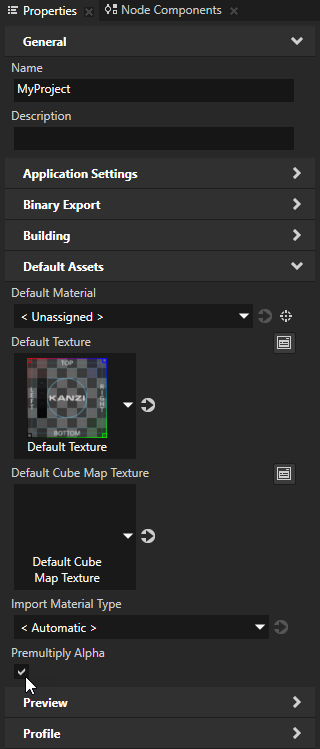
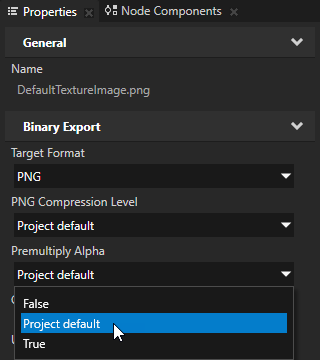
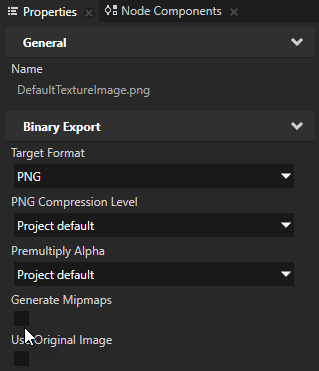
- Generate Mipmaps is disabled
You can set the value of the Generate Mipmaps property in each image file.
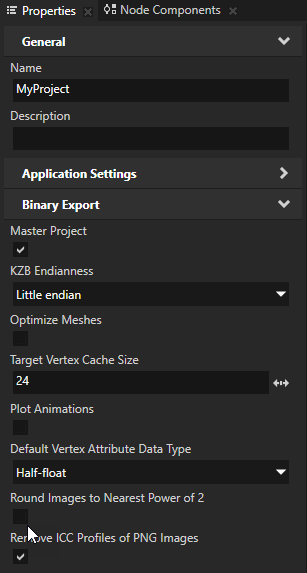
- Round Images to Nearest Power of 2 property is disabled
You can set the value of the Round Images to Nearest Power of 2 property in the > .
If your image is in JPEG or PNG format and you do not want Kanzi Studio to modify the image that it exports to a kzb file, in the image Properties enable the Use Original Image property.
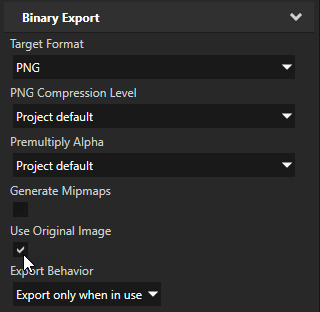
To set the image target format:
- In the Library > Resource Files > Images select the image for which you want to set the target format.
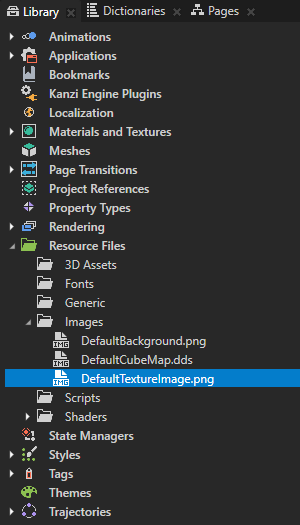
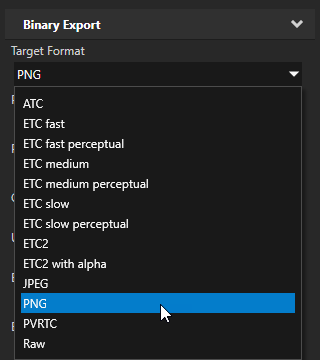
- In the Properties set the Target Format property to the image format you want to use in your Kanzi application.
The format you select is important because this influences the size of the kzb file and the loading time when your Kanzi application needs the resource. Make sure that your target device supports the target format you select for the image. See Images and textures best practices.
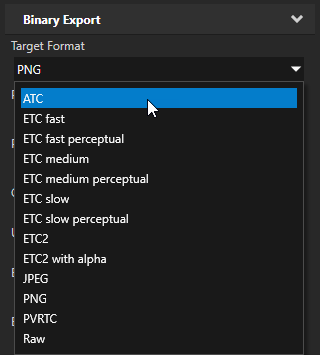
- If the image format you selected in the previous step supports compression, select the compression scheme you want to use. See Compressing textures.
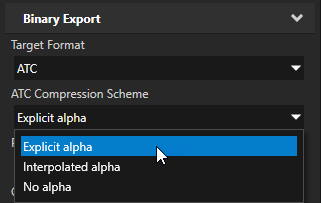
Using the PNG compression
When you use PNG compression keep in mind that because the compressed PNG images do not go to the GPU in compressed format, PNG compression affects the loading of a PNG image data from a kzb file to the device memory.
Use PNG compression to store and load images from a kzb file. To improve the performance of your application consider using an image format which Kanzi can send compressed directly to the device GPU. See Compressing textures.
To use the PNG compression:
- In Kanzi Studio in the Library select Resource Files > Images, and select the image for which you want to apply compression.
- In the Properties set the Target Format to PNG.
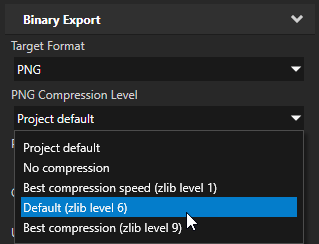
- In the Properties set the PNG Compression Level property to the compression you want to use for this image:
- Project default to use the PNG compression set in the > in the PNG Compression Level property
- No compression to not use compression for the image
- Best compression speed (zlib level 1) creates a larger file, but compresses quickly
- Default (zlib level 6) creates a smaller file, but takes longer to compress. This is the default option of the FreeImage library which Kanzi Studio uses for PNG images.
- Best compression (zlib level 9) creates the smallest file, but takes the most time to compress
Tip You can set the value of the PNG Compression Level property in the > and in the properties for each image file.
Setting the background of an Image node
Use brushes to set the background of 2D nodes. In Kanzi all 2D nodes by default have transparent background.
To set the background:
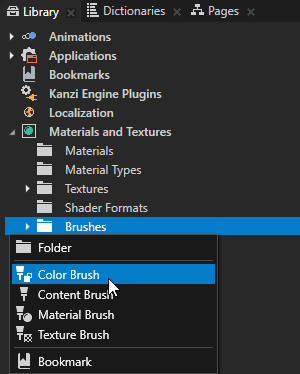
- Create a Color Brush, a Texture Brush, or a Material Brush. See Using brushes.
- In the Project select the 2D node the background of which you want to paint.
Note that you can set only the background of 2D nodes.
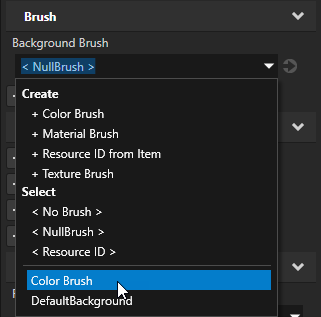
- In the Properties add the Background Brush property and select the brush you created in the first step.
Using the Image node in the API
For details, see the API reference.
See also
Using mipmaps
Images and textures best practices
Using triggers

Open topic with navigation